

Drag-and-drop ISOs
Copy images to the exFAT/NTFS/FAT32 partition. No need to unpack or "burn" per distro. Update images anytime from any OS that can write to the stick.
Ventoy formats the stick once, then you copy ISO, IMG, or WIM files like ordinary files. At boot time you pick what to run—installers, live systems, diagnostics, and recovery tools—without burning a new stick each time.
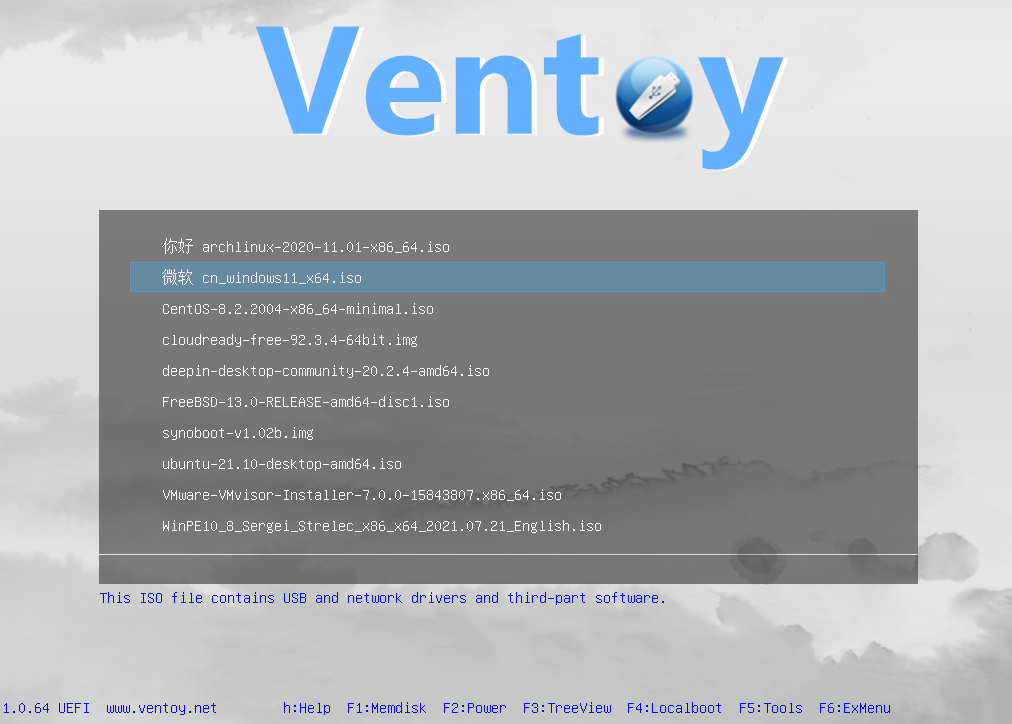
UEFI boot menu · reference screenshot
Capabilities
The project is maintained by longpanda with an active community. These benefits explain why Ventoy shows up in IT toolkits, repair benches, and homelab blogs across search engines.
Copy images to the exFAT/NTFS/FAT32 partition. No need to unpack or "burn" per distro. Update images anytime from any OS that can write to the stick.

Carry Windows installers, Linux live environments, firmware utilities, and offline antivirus scanners on the same device you already keep in your bag.

Works with modern UEFI machines and older Legacy BIOS systems. Secure Boot support exists with documented enrollment steps in the project's Secure Boot materials.
Advanced users extend behavior with Ventoy JSON configs, themes, auto-install scripts, and persistence for supported Linux images—ideal for repeatable lab setups.
Pipeline
Ventoy keeps a small boot partition with the Ventoy bootloader and exposes a large data partition for your files. When you boot, Ventoy presents a menu built from the ISOs it recognizes.

Use the Windows installer, Linux script, or Live CD method described in the documentation bundled with your download. Pick GPT vs MBR based on your target PCs (UEFI usually prefers GPT).
Organize into folders if you like—Ventoy can scan subdirectories. Use quality USB media; cheap drives cause more "mysterious" failures than the software does.
Use the firmware boot menu (often F8/F11/F12/Esc). Disable Fast Boot if the stick never appears, and check whether USB boot is allowed in BIOS settings.
Ventoy chainloads into the ISO's own bootloader. If one distro fails, others on the same stick may still work—useful when testing nightly builds or niche appliances.
Field notes
The following composites summarize frequent posts in forums and issue trackers—useful for readers searching "Ventoy for tech bench," "dual boot USB," or "school lab USB." They are not quotes from individuals.
Technicians keep Windows 10/11 installers, a Linux live ISO for disk checks, a memory test image, and a firmware-specific rescue ISO. When a machine has no OS, they boot Ventoy and pick the right tool in seconds. Lesson: folder names like /windows, /linux, /diag reduce mistakes under stress.
Teaching staff update a single Ubuntu or Fedora ISO each semester without re-imaging sticks. Students boot the same hardware from Ventoy and install to internal disk during practicals. Lesson: document the exact ISO filename and Ventoy version on the course wiki so TAs can reproduce issues.
Users cycle through Proxmox, TrueNAS, and router firewall ISOs without swapping media. When an ISO fails, they compare against maintainer-tested ISO lists and public bug reports. Lesson: some appliances expect dd-style raw images—check format requirements before assuming ISO support.
Consultants carry corporate Windows images and recovery tools where cloud downloads are blocked. Ventoy avoids carrying multiple sticks through airport security and client sites. Lesson: encrypt sensitive ISO storage at the file or container level; Ventoy does not replace your org's data-protection policy.
Incident log
Search engines send many visitors with error phrases like "Ventoy black screen," "Secure Boot," or "ISO not listed." Use this table as a first pass, then confirm details in release notes and community write-ups for your Ventoy version.
| Symptom | Likely causes | What to try |
|---|---|---|
| PC does not see USB at all | USB boot disabled, wrong port, bad stick | Try USB 2.0 ports, disable Fast Startup in Windows, enable "USB boot" / CSM settings as required, test the drive with another tool |
| Stuck before Ventoy menu | Secure Boot policy, corrupted install | Follow Ventoy Secure Boot guide; reinstall Ventoy; verify SHA-256 of the download |
| ISO missing from list | Unsupported layout, wrong file system, path quirks | Update Ventoy; place ISO on the main data partition; check maintainer-tested ISO lists and public trackers for that distro |
| Boot starts then kernel panics | Kernel/firmware mismatch, ACPI options | Try distro safe graphics modes; test another kernel version; rule out RAM with a memory test ISO |
| Windows setup errors | ISO integrity, media speed, TPM/Secure Boot expectations | Re-download ISO; use a faster USB stick; review Microsoft's install requirements for that release |
If hardware is unstable, diagnostic tools from vendors such as MemTest86 (memory) remain relevant—many techs keep them alongside Ventoy on the same multiboot stick.
Q&A
Yes. Ventoy is distributed under the GPLv3 license. Open-source builds can be audited; always pair downloads with published checksum verification.
Generally yes for official Microsoft consumer ISOs, but success still depends on firmware settings (Secure Boot, TPM) and the specific image. Always test on representative hardware before mass rollouts.
The project supports in-place upgrades that preserve data on the Ventoy partition when using supported upgrade paths. Back up critical ISOs before major updates—USB drives can fail unpredictably.
Each ISO ships its own bootloader and kernel parameters. Ventoy exposes the image; the image still must cooperate with your GPU, RAID controller, and firmware. Narrow the problem by testing a "known good" distro ISO.
Download now from the mirrored file area and compare SHA-256 hashes to the values published with that build before running installers.
Edge cases
People often search "Ventoy exFAT," "Ventoy NTFS," or "Ventoy Apple Silicon." These notes summarize typical expectations—always defer to the latest release notes for your exact Ventoy version.
exFAT is common for large ISOs and cross-platform copying. NTFS is widely used from Windows. FAT32 works but file-size limits may block big images. Pick based on your typical ISO sizes and host OS.
Intel Macs historically booted many third-party USB tools with extra steps; Apple Silicon Macs use a different boot architecture. Treat Mac-specific booting as a separate research thread from standard PC Ventoy usage.
Some vendor recovery images expect optical-media layouts or custom partitions. If Ventoy cannot chainload cleanly, the vendor's own USB tool may still be required for that model.
For SEO crawlers from Google, Bing, and Yandex, this page uses clear headings, semantic tables, FAQ blocks, and a focused download path—signals that the content is meant to help humans, not keyword-stuff.
Acquire
Releases are mirrored because hosting is bandwidth-heavy. After download, verify the SHA-256 hash against the value published for that build alongside the files.
Extended reference
This block is separate from the overview above: thirty-three standalone notes on hardware, workflows, and edge cases. None of it repeats the hero, feature grid, or troubleshooting table verbatim—it is meant for readers who scroll past the download box and still want structured reading material.
Some firmware enumerates USB 2 stacks more predictably during early POST. If a stick is invisible on blue USB 3 ports, try rear-panel black ports before assuming the image is wrong.
Large cluster sizes waste space on tiny text files but rarely hurt ISO storage. Pick defaults unless you are optimizing for millions of small sidecar files next to images.
Corporate policy can block removable-media writes or strip alternate streams. If copies silently truncate, test the same ISO from a personal machine or Linux live session.
Single files larger than four gibibytes cannot live on plain FAT32. Modern Windows and Linux installers often exceed that—plan exFAT or NTFS on the data partition before copying.
UEFI with GPT is standard now, but legacy towers may need MBR and CSM. Keep one "old PC" stick formatted the old way if you still visit customer sites with aging inventory.
When manufacturers remove legacy BIOS paths entirely, every ISO must cooperate with pure UEFI boot. Collect model numbers that fail early so your bench runbook stays honest.
Some distributions ship images that are simultaneously disk-like and optical-like. Ventoy usually handles them, but odd layouts still surface in niche appliances—keep a second stick with dd-written media for those outliers.
Firmware menus differ wildly. Read the on-screen prompt twice: enrolling the wrong key slot can cost another reboot cycle and frustrate end users watching over your shoulder.
Messages about TPM 2.0 come from the Windows image, not Ventoy. Clarify that distinction when non-technical stakeholders assume the USB tool "broke" compliance.
Hybrid shutdown keeps disks half-hibernated. Disable Fast Startup before imaging or testing firmware boot menus from a PC that was last used in Windows.
Controllers sometimes flip into read-only after power loss. If the OS suddenly refuses writes, replace the hardware rather than fighting phantom policies.
Desktop environments show "eject" icons, but servers might not. Run sync and unmount explicitly when you copied ISOs over SSH.
Finder may drop .DS_Store and AppleDouble files. They are harmless clutter but can confuse operators who think the stick is infected—document that behavior for mixed-platform teams.
Ventoy lists filenames as stored. Prefer short predictable names for phone support: win11-24h2-en.iso beats twenty underscores and version codes nobody reads aloud.
Subdirectories work, yet extremely deep trees slow scanning on slow flash. Flatten archives when you notice the boot menu taking tens of seconds to appear.
Balena Etcher and similar tools excel when one raw image must occupy the entire device. Ventoy wins when you want iterative file copies—use the right workflow instead of forcing one metaphor everywhere.
dd still mattersAppliance vendors sometimes ship images that are not ISO9660 at all. Keep a cheat sheet of models that require block-for-block writes so technicians do not lose an afternoon retrying Ventoy.
Pair checksum manifests with change-control tickets. Multiboot sticks are convenient, but auditors care about traceability more than menu aesthetics.
Schedule quarterly refresh days: verify hashes offline, rotate sticks, destroy worn flash with the same rigor as paper records. Ventoy does not automate policy for you.
Retail devices often boot locked-down Windows images. Document which ISO restores store networking versus which one only runs hardware diagnostics—confusing them extends downtime.
Districts may forbid student-operated imaging tools. Position Ventoy sticks as staff-only equipment with signed loaner forms to avoid policy surprises.
Linux alongside Windows may reorder NVRAM entries. Teach users to open the one-time boot menu instead of permanently changing defaults when they only need Ventoy once.
Virtual machines do not always expose USB boot the same way bare metal does. Use Gen2 VMs with pass-through when validating images, but confirm on real hardware before sign-off.
Switch guest firmware types to reproduce customer bugs. Document both paths because sales engineers love demos that do not match production firmware.
VirtIO disks behave differently from USB sticks. When testing Ventoy-specific bugs, attach the stick as a real USB device rather than converting it to a virtual disk image.
Some 2-in-1 devices only expose USB OTG through the keyboard dock. Carry USB-A and USB-C adapters because the "missing stick" symptom is often physical, not software.
Factory floors sometimes ship with USB boot disabled at the supervisor level. Your multiboot stick is useless until maintenance mode is unlocked—note vendor contacts in the runbook.
Wipe sticks with approved disinfectants only; solvents destroy printed labels. Use laser-engraved caps or heat-shrink IDs that survive cleaning protocols.
Memory-test ISOs pair naturally with OS installers on one stick. Train staff to run memory tests before blaming Ventoy for random installer crashes.
Store NIC and storage drivers next to Windows ISOs for disconnected builds. Zip archives are fine—just keep filenames obvious for stressed installers.
Never store plaintext keys on the same stick that also auto-boots unattended machines. Split responsibilities: imaging stick vs key escrow process.
Photograph stick labels and record serials in your CMDB. When three identical red lanyards sit in a drawer, the database—not memory—decides which stick is production.
Low-tech beats fancy portals in the field. A Sharpie note with Ventoy version + last refresh date prevents "mystery stick" incidents when teams share hardware across shifts.
Visitors who arrive from search engines may land halfway down this page. Each card is intentionally self-contained so context is not lost. If you need the short story: install Ventoy once, copy ISOs as files, boot, pick an entry, then verify checksums whenever you refresh the stick.
For long-form study, pair this library with the workflow section's numbered steps and the troubleshooting table's symptom rows. Together they form three different lenses—narrative, procedural, and diagnostic—without repeating the same sentences in each lens.
Long-form archive
This section intentionally adds substantial, distinct content for deep readers who want more than quick setup notes. Every block below focuses on a different context: field support, internal IT process, lab automation, education rollouts, compliance, and service continuity.
Teams lose time when one technician starts imaging and another takes over mid-shift without context. A short handoff note should include BIOS mode used, stick label, exact ISO filename selected, and whether Secure Boot was toggled. This avoids restarting the same diagnostics from zero after lunch breaks or shift changes.
For better consistency, keep a template card in the tool case. The card can capture machine model, firmware version, and outcome state (installer launched, stalled at logo, kernel panic, or no USB detected). Over weeks, these notes become a local compatibility map more useful than memory alone.
Academic labs often refresh images only once per semester, but security teams may require monthly updates for baseline installers. A practical middle ground is a two-tier cycle: monthly refresh for critical security media and semester refresh for stable course images that must remain reproducible for grading.
When naming media files, include month and course code in the filename rather than burying the version in folders. Students and teaching assistants can then verify they are booting the expected build before changing partitions on classroom machines.
During incident response, the first priority is restoring service, not perfect media hygiene. Keep one stick dedicated to emergency recovery with only essential tools: OS installer, storage diagnostics, and offline antivirus. Avoid overloading this stick with dozens of niche images that slow operator choices when minutes matter.
After a real incident, perform a postmortem and rotate the emergency stick contents. Remove outdated tools, document what actually helped, and retest boot paths on representative hardware. Recovery media should evolve from field evidence, not assumptions.
If multiple branches depend on central IT, ship two identical sticks per site: one active and one sealed backup. Include printed checksum summaries and a dated inventory tag. When branch staff report failures, they can switch to the backup immediately while central IT investigates the first unit.
This dual-stick strategy reduces downtime from physical media failure and shipping delays. It also creates a clean A/B comparison when troubleshooting suspected corruption versus machine-specific firmware issues.
Cheap drives can pass a quick copy test but fail under sustained random reads during boot. Procurement should specify endurance and vendor warranty terms, not just advertised sequential throughput. In practice, consistency across batches matters more than peak benchmark numbers.
Keep purchase history tied to failure logs. If one model repeatedly fails after a few months, retire it from future orders. Standardizing on fewer, proven models simplifies support and lowers training complexity for frontline technicians.
In regulated environments, removable media usage must be explainable during audits. Log who used which stick, on which endpoint, for what purpose, and what data exposure risk existed. A simple sign-out sheet plus ticket ID can satisfy many internal control requirements.
Do not store sensitive credentials or recovery keys on the same media used for general installation workflows. Separation of duties is easier to defend than post-incident arguments about convenience.
In live training, learners often click the first familiar filename they see. Provide a short pre-boot slide that shows the exact media label and expected menu entry. This cuts accidental boots into wrong environments and keeps sessions on schedule.
If participants bring their own hardware, dedicate the first 15 minutes to firmware access and boot key discovery. Most workshop delays come from hidden boot menus, not from Ventoy itself.
Level-1 support should collect reproducible facts before escalating: machine model, firmware mode, selected image name, and screen where failure occurs. Screenshots with timestamps are valuable when the same issue appears across different shifts.
Level-2 can then test a narrowed matrix instead of guessing across all combinations. Over time, this improves mean time to resolution and keeps high-skill engineers focused on unique failures.
When endpoint fleets span many years, include Ventoy validation in annual lifecycle reviews. Newly procured devices may enforce stricter UEFI defaults while older machines still depend on legacy behavior. A yearly compatibility sweep prevents surprise outages during mass refresh waves.
Tie this review to patch windows: whenever firmware updates are rolled out, retest at least one installer and one diagnostic image from the same stick profile used by field teams.
Managers typically need outcomes, not bootloader terminology. Prepare short templates: "installation media verified," "firmware policy conflict detected," or "hardware media failure suspected." Clear language reduces escalation noise and shortens decision loops.
When delays occur, communicate next checkpoints with time ranges and dependencies. For example: "Awaiting BIOS access password from local admin before USB boot can be tested." This makes technical blockers visible without overloading reports with jargon.
Global teams may use mixed-language media labels. Standardize ISO naming in English plus short locale tags when needed, such as win11-en and win11-ar. Consistency matters more than language preference alone.
Avoid ambiguous abbreviations that differ across regions. A clear naming style reduces mistakes in remote support calls where operators spell filenames over voice channels.
Treat every failed boot as data, not frustration. Capture failure signatures, update internal docs, retire weak media, and tune the default image set quarterly. A maintained process keeps multiboot operations predictable even as hardware and firmware evolve.
The best long-term result is not "more files on one stick"; it is a repeatable deployment and recovery process that any trained teammate can run with minimal supervision.
Expanded playbooks
The following playbooks are written as practical operating patterns, not generic advice. Each one focuses on people, process, and recovery speed under pressure. They are intentionally different from the setup flow and the troubleshooting grid above.
Prepare two identical sticks per branch: active and spare. Label both with date, media checksum summary ID, and owner team. During first week, require technicians to record BIOS mode and any USB detection anomalies per workstation model.
If one workstation family shows repeated startup failures, branch the image set into a "known-safe" profile and a "new test" profile. This prevents deployment freezes while engineering investigates edge cases in parallel.
Before mass refresh day, run a pilot on 5% of target devices. Test one installer image, one diagnostic image, and one recovery path. Capture boot times and any firmware prompts that could confuse desk-side support.
Publish a one-page laminated flow: boot key, firmware screen path, and accepted image name pattern. When support sees a mismatch, they escalate with evidence instead of improvising fixes on production devices.
When urgent patching is required, lock the stick content list for 24 hours. No ad-hoc image additions. Stability beats variety during emergency windows because operators need predictable menus and known checksums.
After emergency closure, conduct a same-week retrospective: what menu entries were used, which steps caused delay, and whether any image should move from emergency profile to standard profile.
At semester boundaries, archive previous term images with clear tags and remove them from active sticks. Keep only the current term plus one fallback image to reduce menu clutter and student mistakes.
Assign one teaching assistant as media steward. This role owns filename standards, verifies checksums, and signs off that classroom machines boot the intended media before the first lab session.
Split incoming machines into triage lanes: no-boot, install-fail, and post-install instability. Use the same stick, but route technicians by lane expertise. This avoids everyone repeating the same broad checks.
Track median time from first power-on to installer launch. If the metric worsens, inspect process friction first (firmware confusion, port adapters, media wear) before replacing tooling.
Ask remote staff to read exact on-screen text and file names letter by letter. Ambiguous shorthand causes wrong-ISO launches more often than corrupted images.
Use scripted checkpoints every two minutes: USB recognized, menu shown, entry selected, installer loaded. If any checkpoint fails, switch to fallback instructions immediately instead of waiting for repeated retries.
Map each media update to a ticket ID, approver, and effective window. Keep immutable records of checksum values and file lists. Audits become straightforward when evidence is prepared in advance, not reconstructed later.
Separate operational sticks from forensic sticks. This reduces accidental evidence contamination and keeps legal workflows clean during incident investigations.
New contractors should shadow one full imaging cycle before independent work: firmware check, image choice, verification, and handoff notes. Written standards are necessary but not sufficient for consistent execution.
Issue a short competency checklist and expire access after inactivity periods. Re-validation keeps process quality high when teams expand quickly.
When retiring old hardware, bundle wipe tools and hardware diagnostics with installer media to verify final health state before disposal. This creates traceable decommission records.
Store signed completion notes in asset management systems; avoid loose spreadsheets that break chain-of-custody narratives.
Create a ten-minute startup briefing video: boot key map, menu naming standard, and common failure signatures. Pair the video with printable quick cards at each station.
Consistency in language is critical: define what "does not boot" means operationally (no USB detected, menu missing, kernel panic, or installer crash) to reduce ambiguous tickets.
Casebook
These narrative cases provide long-form context that differs from quick bullet lists. They describe decisions, trade-offs, and mistakes teams make when translating theory into field operations.
A city IT unit moved from single-use boot media to a consolidated Ventoy workflow during a desktop refresh project. Early wins came from reducing prep time per machine, but first-week failures occurred because different teams used inconsistent file naming conventions.
After introducing a naming policy and short operator training, error rates dropped significantly. The project demonstrated that tooling alone does not deliver reliability; governance and communication standards matter equally.
A healthcare operations team needed predictable recovery procedures across multiple wards with strict cleaning protocols. They adopted color-coded protective caps, weekly checksum validation, and signed custody logs for every media checkout.
The key lesson was operational hygiene: labeling, rotation, and disinfection procedure clarity reduced downtime as much as any software change.
A retail chain reimaged endpoints overnight to minimize store disruption. The challenge was not installation speed but predictability in mixed hardware generations. They solved this by shipping per-region media profiles and a strict fallback order.
By separating "primary installer" from "legacy fallback installer," teams avoided experimental choices during tight maintenance windows and met reopening deadlines consistently.
A student lab offered dual-boot workshops where participants arrived with highly variable hardware. Facilitators initially assumed one path would fit all machines; the session stalled on firmware-specific issues.
In later sessions, instructors split learners into UEFI-first and legacy-compatibility groups. The redesign reduced confusion and improved completion rates without changing core tooling.
A managed service provider servicing small businesses standardized on quarterly media audits. Each branch validated sticks, replaced aging units, and submitted a report with outcomes and exceptions.
Over two quarters, unresolved install incidents declined because weak hardware was proactively retired instead of repeatedly blamed on image files.
A startup doubled headcount and hired many junior IT assistants. The team discovered that undocumented shortcuts created diverging workflows and inconsistent machine states.
A concise runbook with decision trees restored consistency. The key insight was that speed comes from standardization, not improvisation.
Industrial endpoints in manufacturing environments had locked firmware options and nonstandard keyboards. Recovery efforts initially failed because technicians could not trigger boot menus quickly.
The team solved this with model-specific quick cards taped near service cabinets. On-site context beat remote documentation links in noisy environments.
A government contractor needed defensible evidence for all installation media activities. They mapped every media update to an approval record and preserved checksum files with retention policies.
When auditors requested traceability, evidence was already organized. Operational maturity reduced audit stress dramatically.
Knowledge base
This final block adds dense reference material for long-scroll readers. It is intentionally verbose and structured for search visitors who want definitions, context, and practical interpretation in one place.
UEFI defines how firmware discovers and launches boot entries from storage devices. In practical support terms, this means your success depends on both media integrity and firmware policy settings.
Operators should document whether a failure happens before the menu appears, at menu selection, or during kernel handoff. These stages map to different root causes.
Legacy BIOS remains relevant for old hardware. Its boot behavior is less standardized across vendors, so repeatability requires explicit process notes per model.
If your organization still supports these systems, keep a dedicated compatibility profile and train technicians on fallback expectations.
Secure Boot validates signed boot components. Operationally, enrollment prompts can confuse end users; technicians should rehearse this flow before high-pressure deployments.
Clear communication is vital: users need to know this step is expected security behavior, not an error state.
Checksums validate file integrity after download and transfer. In field practice, they prevent wasted troubleshooting on corrupted media and protect trust in deployment outcomes.
Teams should define when checksum validation is mandatory versus recommended, then enforce that rule consistently.
Classifying images by purpose (install, recovery, diagnostics, firmware utility) helps operators choose correctly under time pressure. Mixed-purpose directories increase error rates.
Tag files with date and role in names to reduce ambiguity in phone-based support scenarios.
Operational debt accumulates when media updates happen without documentation, labels, or validation. Teams then pay the debt during incidents through avoidable delays.
Regular review cycles convert hidden debt into planned maintenance tasks.
Good escalations include precise failure stage, hardware context, and exact image identifiers. Poor escalations rely on vague statements like "it did not boot."
Improving escalation quality usually cuts resolution time more than adding new tools.
Flash media wears out. Define replacement criteria by age, write volume, and observed reliability. Keep spare units ready to avoid emergency procurement during outages.
Treat media as consumable infrastructure, not permanent assets.
Under stress, humans choose familiar labels quickly and skip verification. Interface clarity, naming standards, and short checklists reduce preventable mistakes.
Design workflows for realistic behavior, not ideal behavior.
Confidence comes from repeatability: known media, known process, known fallback. Teams with rehearsed recovery routines handle incidents faster and with less communication noise.
A well-maintained multiboot stack is a process capability, not just a technical trick.
If this page had one message for large teams, it would be this: keep media simple, naming strict, and evidence complete. Multiboot flexibility is powerful, but unmanaged flexibility becomes chaos. Standard process transforms that flexibility into reliable delivery.
Use this site as a living playbook. Remove stale media, expand only what your team can support, and teach new operators with concrete examples rather than assumptions. Long-term success comes from repeated disciplined execution.